
How to Set Up IPTV with an M3U Link in Sparkle TV
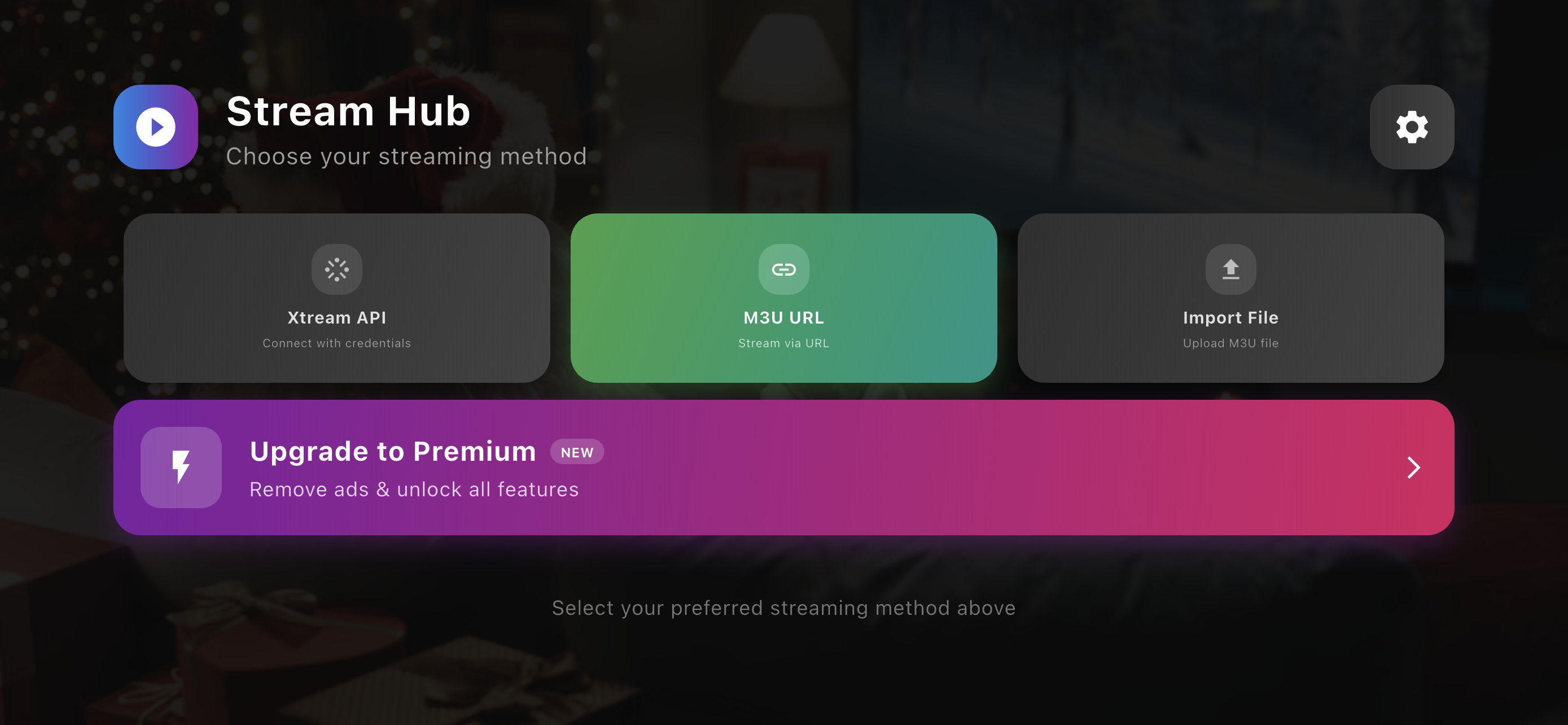
Streaming IPTV on Android TV has never been easier, and Sparkle TV is one of the best IPTV players available today. If you already have an IPTV subscription with an M3U playlist URL, you can get everything running in just a few minutes.
In this guide, you'll learn exactly how to add an M3U link to Sparkle TV, configure your playlist, and start watching live TV without any technical knowledge.
What You'll Need
Before you begin, make sure you have:
Sparkle TV installed on your Android TV or Google TV device
A valid IPTV subscription
An M3U Playlist URL provided by Rapid IPTV
A stable internet connection
Step 1: Open Sparkle TV
Launch the Sparkle TV application from your Android TV home screen.
If this is your first time opening the app, you'll be prompted to add a new playlist.
Step 2: Choose "Add Playlist"
On the welcome screen:
Select Add Playlist
Choose M3U Playlist
Continue to the next step
Step 3: Enter Your M3U Link
You'll now see a field asking for your playlist URL.
Paste your Rapid IPTV M3U link exactly as provided.
Example:
http://RapidIPTV.org/get.php?username=USERNAME&password=PASSWORD&type=m3u_plus&output=ts
After entering the link, press Next.
Step 4: Wait for the Playlist to Load
Sparkle TV will automatically:
Download the playlist
Import channels
Organize TV categories
Retrieve channel logos
Load available TV guides (if provided)
Depending on the size of your playlist, this usually takes less than one minute.
Step 5: Start Watching IPTV
Once the import finishes, your channels will appear by category.
You can now:
Watch live TV
Browse categories
Search channels
Mark favorites
View the electronic program guide (EPG)
Congratulations! Rapid IPTV service is now ready to use.
Optional: Add an EPG Guide
you can Request an EPG URL then :
Open Settings
Navigate to EPG
Select Add EPG Source
Paste the EPG URL
Save and refresh
This enables TV schedules and program information.
Common Problems and Solutions
Playlist Won't Load
Possible causes:
Incorrect M3U URL
Expired IPTV subscription
Internet connection problems
Temporary server outage
Double-check your playlist link and contact your Rapid IPTV Support if necessary.
Channels Are Missing
Try:
Refreshing the playlist
Restarting Sparkle TV
Re-importing the M3U playlist
Some providers also offer different playlist formats.
No TV Guide (EPG)
Verify that:
The EPG URL is correct
Your provider supports EPG
The playlist has finished syncing
Why Use Sparkle TV?
Sparkle TV offers several advantages:
Fast and lightweight
Modern Android TV interface
M3U support
Xtream Codes support
EPG integration
Favorites management
Multiple playlist support
Excellent remote control navigation
It's one of the easiest IPTV players for beginners while still offering advanced features for experienced users.
Frequently Asked Questions
Can I use any M3U link in Sparkle TV?
Yes. As long as the M3U playlist is valid and active, Sparkle TV can import it.
Does Sparkle TV support Xtream Codes?
Yes. Besides M3U playlists, Sparkle TV also supports Xtream Codes login.
Is Sparkle TV free?
Sparkle TV offers a free version with basic functionality. Some advanced features require the premium version.
Why is my playlist buffering?
Buffering is usually caused by:
Slow internet speed
IPTV server congestion
VPN issues
Network instability
Final Thoughts
Setting up IPTV with an M3U link in Sparkle TV is quick and straightforward. With just a valid playlist URL, you can enjoy thousands of live TV channels directly on your Android TV device.
If you experience issues, verify your playlist details, internet connection, and IPTV subscription status before troubleshooting further.
Enjoy smooth IPTV streaming with Sparkle TV!