
How to Set Up IPTV with an M3U Link in UHF
UHF is a modern IPTV player that allows users to stream live TV using an M3U playlist or Xtream Codes. It offers a clean interface, fast performance, and an easy setup process for beginners.
If us (your IPTV provider) has given you an M3U playlist URL, this guide will walk you through the setup process step by step.
Requirements
Before you begin, make sure you have:
UHF installed on your device
A valid IPTV subscription
An active M3U Playlist URL
A stable internet connection
Step 1 – Launch UHF
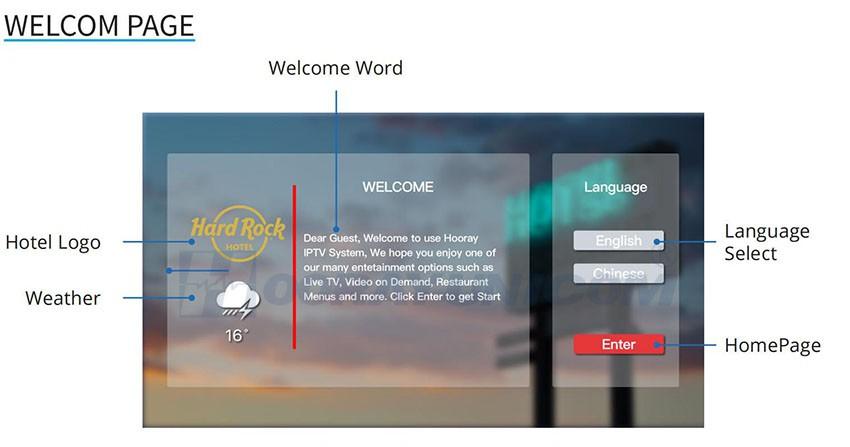
Open the UHF app on your device.
If this is your first time using UHF, the application will ask you to add a playlist.
If you've already configured another IPTV account:
Open Settings
Select Playlists
Click Add Playlist
Step 2 – Select M3U Playlist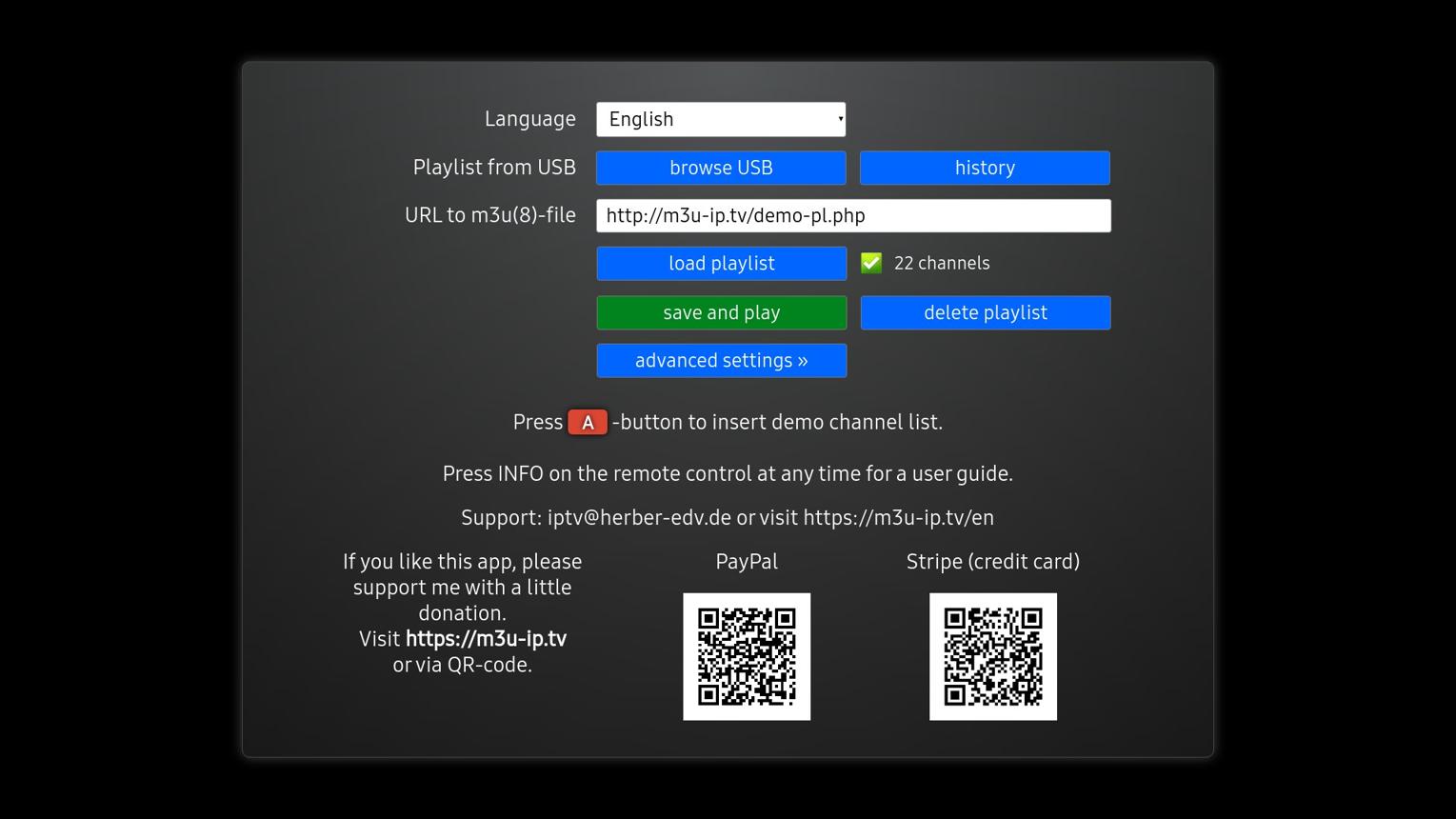
Choose the playlist type.
Select M3U Playlist
and continue.
Step 3 – Enter Your Playlist URL
Copy the M3U link supplied by your Rapid IPTV provider.
Paste it into the Playlist URL field.
Example:
http://tv.rapidiptv.tvip.xyz/get.php?username=USERNAME&password=PASSWORD&type=m3u_plus&output=ts
Click Import.
Step 4 – Import Channels
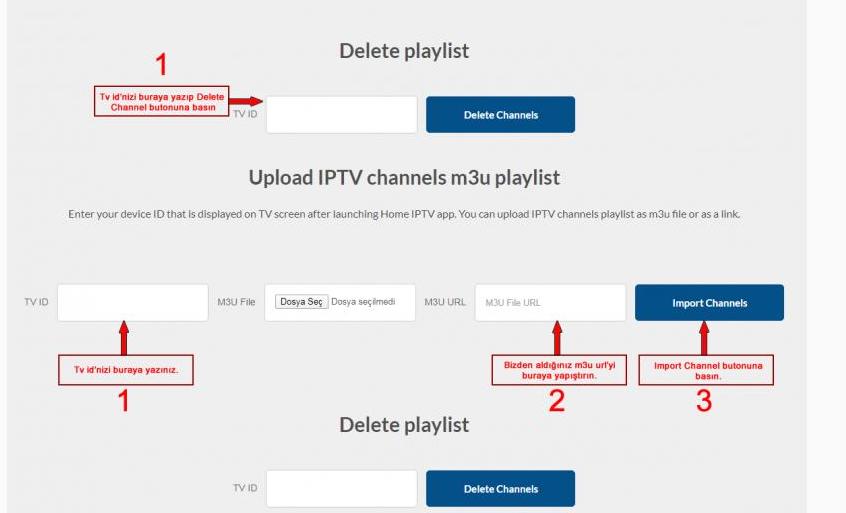
UHF will automatically:
Download your playlist
Import Live TV channels
Organize channel categories
Download channel logos
Prepare the IPTV library
This usually takes less than one minute.
Step 5 – Configure the EPG (Optional)
If your IPTV provider includes an Electronic Program Guide (EPG):
Open Settings
Select EPG
Click Add EPG Source
Paste your EPG URL
Save your settings
Refresh the guide
You will now be able to see current and upcoming TV programs.
Step 6 – Start Watching IPTV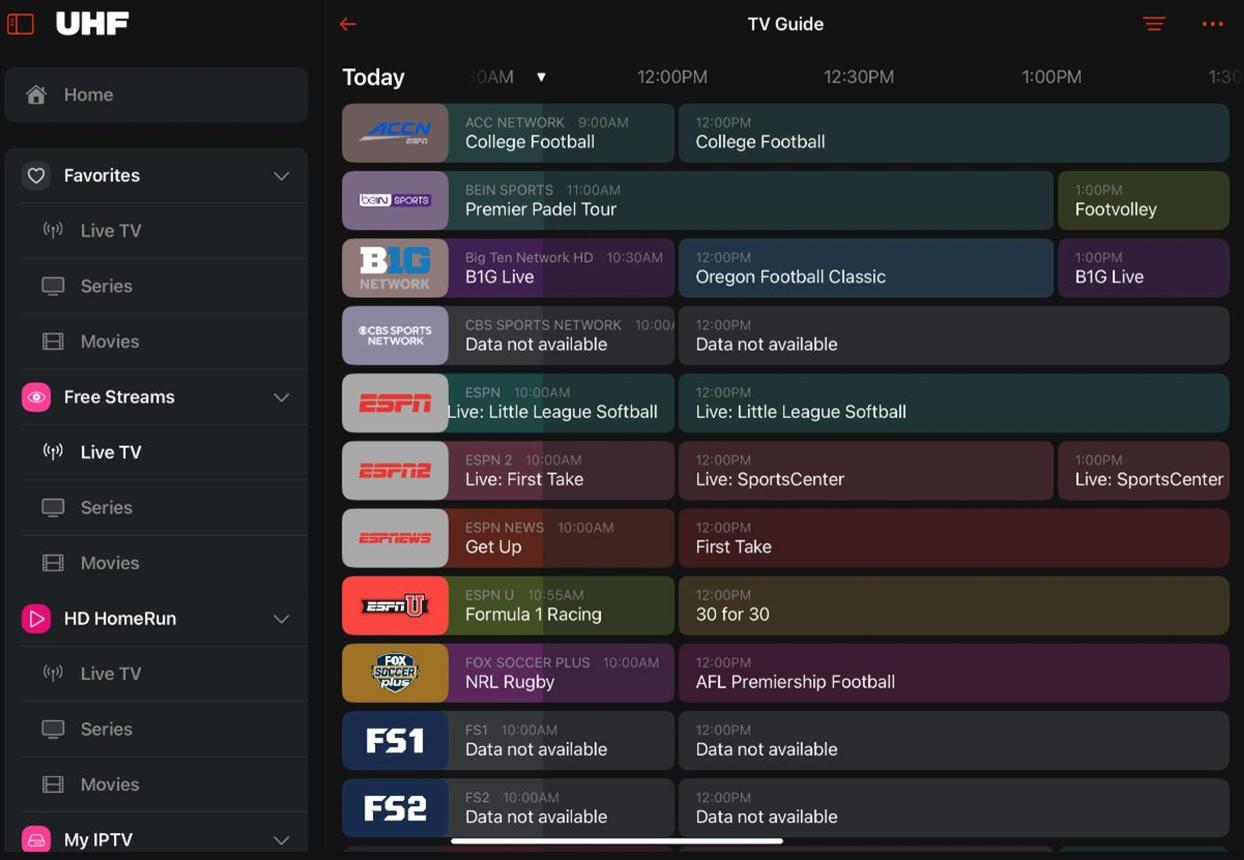
After synchronization is complete, you'll have access to:
Live TV
Sports Channels
News Channels
Movies (if included)
TV Series (if included)
Favorites
TV Guide (EPG)
Your Rapid IPTV service is now ready to use.
Troubleshooting
Playlist Doesn't Load
Check the following:
The M3U URL is correct.
Your IPTV subscription is active.
Your internet connection is working properly.
Restart UHF and try importing again.
No Channels Found
If no channels appear:
Refresh the playlist.
Remove and re-add the M3U playlist.
Contact your IPTV provider to confirm your account is active.
EPG Not Showing
If program information is missing:
Verify the EPG URL.
Refresh the guide.
Wait several minutes after the initial import.
Buffering Issues
Buffering may occur because of:
Slow internet speed
Busy IPTV servers
Wi-Fi signal issues
VPN or DNS configuration
A wired Ethernet connection generally provides the most stable streaming experience.
Why Choose UHF?
UHF provides several useful IPTV features, including:
Fast playlist loading
M3U playlist support
Xtream Codes support
Multiple playlists
EPG integration
Favorite channels
Modern interface
Smooth playback
These features make UHF an excellent choice for IPTV users.
Frequently Asked Questions
Can UHF play M3U playlists?
Yes. UHF fully supports IPTV M3U playlists.
Can I use multiple IPTV accounts?
Yes. UHF lets you add and manage multiple IPTV playlists.
Is an EPG required?
No. IPTV works without an EPG, but adding one provides a better viewing experience with TV schedules.
Why is my M3U playlist not working?
The most common reasons are:
Incorrect M3U URL
Expired IPTV subscription (buy Rapid IPTV)
Internet connection problems
IPTV server maintenance
Final Thoughts
Setting up IPTV with an M3U playlist in UHF is simple and only takes a few minutes. Once your playlist is imported, you'll have access to your IPTV channels with an organized interface and optional TV guide support.
If you experience any setup issues, verify your M3U playlist, internet connection, and IPTV subscription before contacting your Rapid IPTV provider.