
How to Set Up IPTV with Xtream Codes in UHF
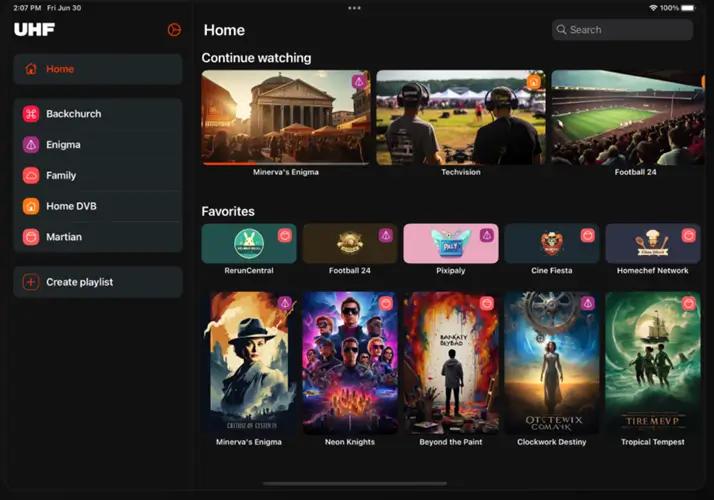
UHF is one of the easiest IPTV players for watching live TV, movies, and TV series. Besides supporting M3U playlists, UHF also allows users to connect using Xtream Codes API, which is often the preferred login method provided by IPTV services.
In this guide, you'll learn how to configure your IPTV subscription using Xtream Codes and start streaming within minutes.
What You'll Need
Before you begin, make sure you have:
UHF installed on your device
An active IPTV subscription
Your Xtream Codes credentials:
. Server URL
. Username
. Password
A stable internet connection
Step 1 – Open UHF
Launch the UHF application.
If this is your first setup, the app will ask you to add a playlist automatically.
If you've already configured another account:
Open Settings
Select Playlists
Click Add Playlist
Step 2 – Select Xtream Codes
Choose the playlist type.
Select:
Xtream Codes API
Then continue.
Step 3 – Enter Your IPTV Login Details
Fill in the required information exactly as provided by your IPTV provider.
Server URL
Example:
http://tv.rapidiptv.tvip.xyz
Username
Enter your Rapid IPTV username.
Password
Enter your Rapid IPTV password.
Double-check your credentials before continuing.
Step 4 – Connect to the IPTV Server
Click Login or Continue.
UHF will automatically:
. Verify your account
. Download Live TV channels
. Import Movies
. Import TV Series
. Download channel logos
. Synchronize the Electronic Program Guide (EPG)
This process usually takes less than one minute.
Step 5 – Browse Your Content
After synchronization, you'll have access to:
. Live TV
. Movies
. TV Series
. Favorites
. Catch-up TV (if supported)
. TV Guide (EPG)
Everything will be organized into categories automatically.
Troubleshooting
Login Failed
If you cannot log in:
. Verify your Server URL.
. Check your username and password.
. Make sure your IPTV subscription is active.
. Restart the UHF app and try again.
No Channels Available
If no channels appear:
. Refresh the playlist.
. Log out and sign in again.
. Contact your IPTV provider to confirm your account is active.
EPG Not Working
If the TV Guide is missing:
. Refresh the EPG.
. Wait a few minutes after the initial synchronization.
. Verify that your IPTV provider includes EPG support.
Playback Buffering
Playback interruptions may occur because of:
. Slow internet connection
. IPTV server congestion
. Wi-Fi signal problems
. VPN or DNS issues
Using a wired Ethernet connection is recommended for the best streaming experience.
Why Use Xtream Codes Instead of an M3U Playlist?
Many IPTV users prefer Xtream Codes because it offers:
. Faster setup
. Automatic playlist updates
. Built-in EPG synchronization
. Better organization of Live TV, Movies, and Series
. Easier account management
. Frequently Asked Questions
Does UHF support Xtream Codes?
Yes. UHF fully supports Xtream Codes API.
Can I use multiple IPTV accounts?
Yes. UHF allows you to add multiple IPTV accounts and switch between them.
Is Xtream Codes better than M3U?
Both methods work well. Xtream Codes usually provides automatic updates and simpler account management.
Why is my account rejected?
This usually happens because:
. Incorrect login details
. Invalid Server URL
. Expired IPTV subscription
. Temporary server maintenance
Final Thoughts
Setting up IPTV with Xtream Codes in UHF is fast, simple, and beginner-friendly. Once your account is connected, UHF automatically imports your channels, movies, TV series, and EPG data, giving you a complete IPTV experience with minimal setup.
If you encounter any issues, verify your login details and internet connection before contacting your Rapid IPTV provider.