
How to Set Up IPTV with an M3U Link in TiviMate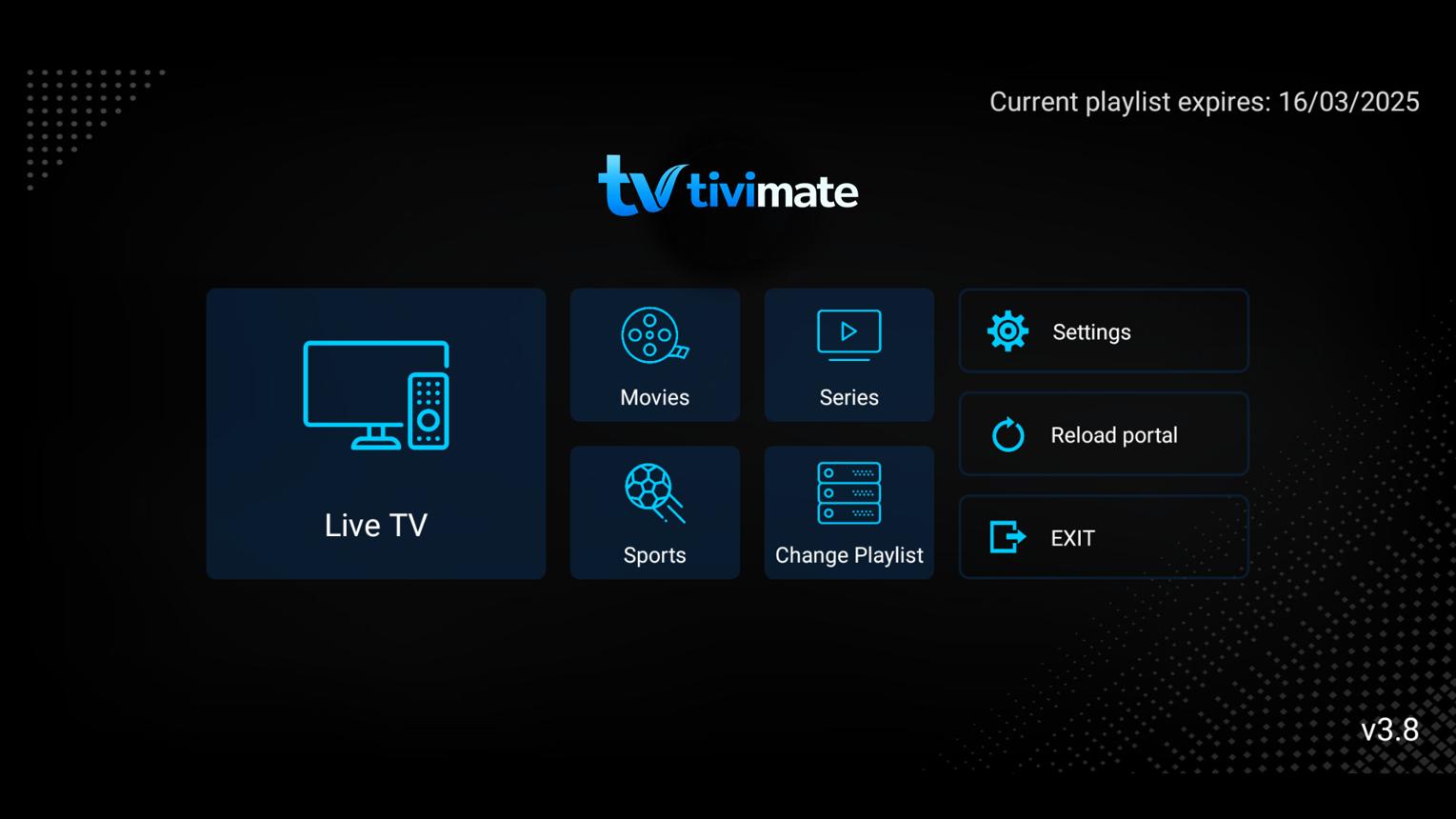
TiviMate is one of the most popular IPTV players for Android TV and Fire TV devices. It offers a clean interface, excellent EPG support, and advanced playlist management features.
If your IPTV provider has provided an M3U playlist URL, you can easily add it to TiviMate and start watching live TV channels in just a few minutes.
Requirements
Before starting, make sure you have:
. TiviMate installed on your device
. A valid IPTV subscription
. An active M3U playlist URL
. A stable internet connection
Step 1 – Open TiviMate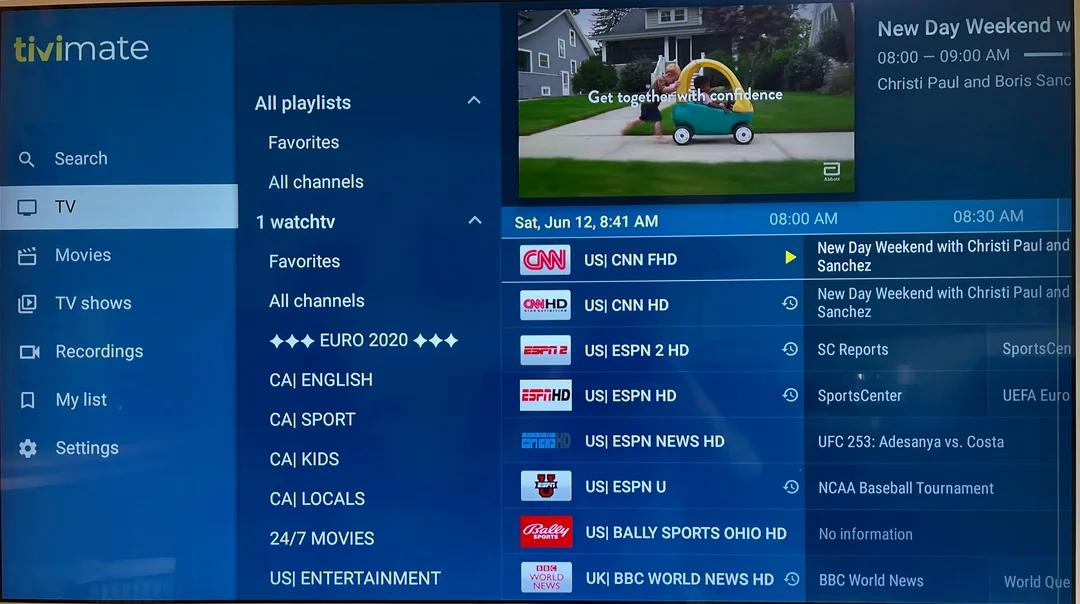
Launch the TiviMate application.
If this is your first time opening the app, you'll immediately be prompted to add a playlist.
If you've already configured another playlist:
1. Open Settings
2. Select Playlists
3. Click Add Playlist
Step 2 – Select Playlist Type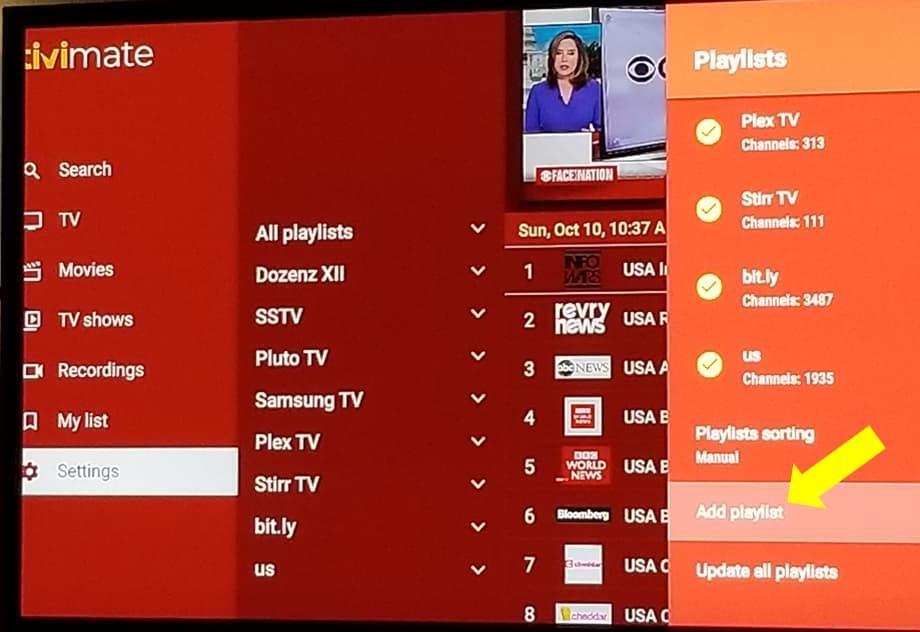
Choose:
M3U Playlist
Then click Next.
Step 3 – Enter Your M3U URL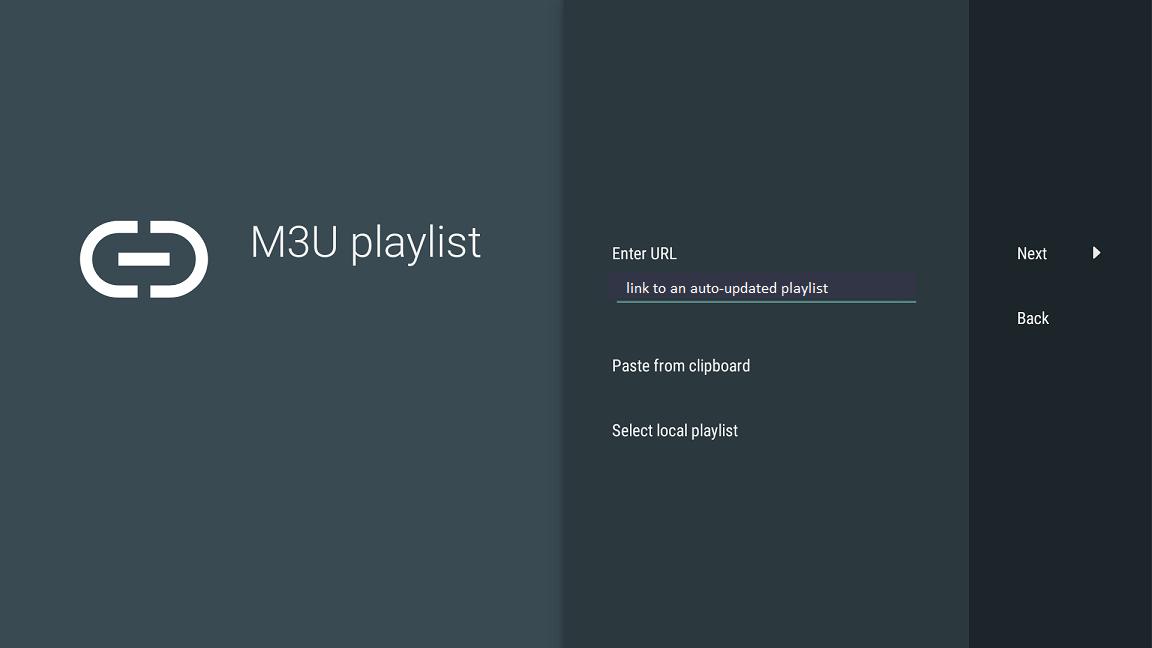
Paste the playlist URL provided by your Rapid IPTV provider.
Example:
http:/tv.rapidiptv.tvip.xyz/get.php?username=USERNAME&password=PASSWORD&type=m3u_plus&output=ts
Click Next.
Step 4 – Enter a Playlist Name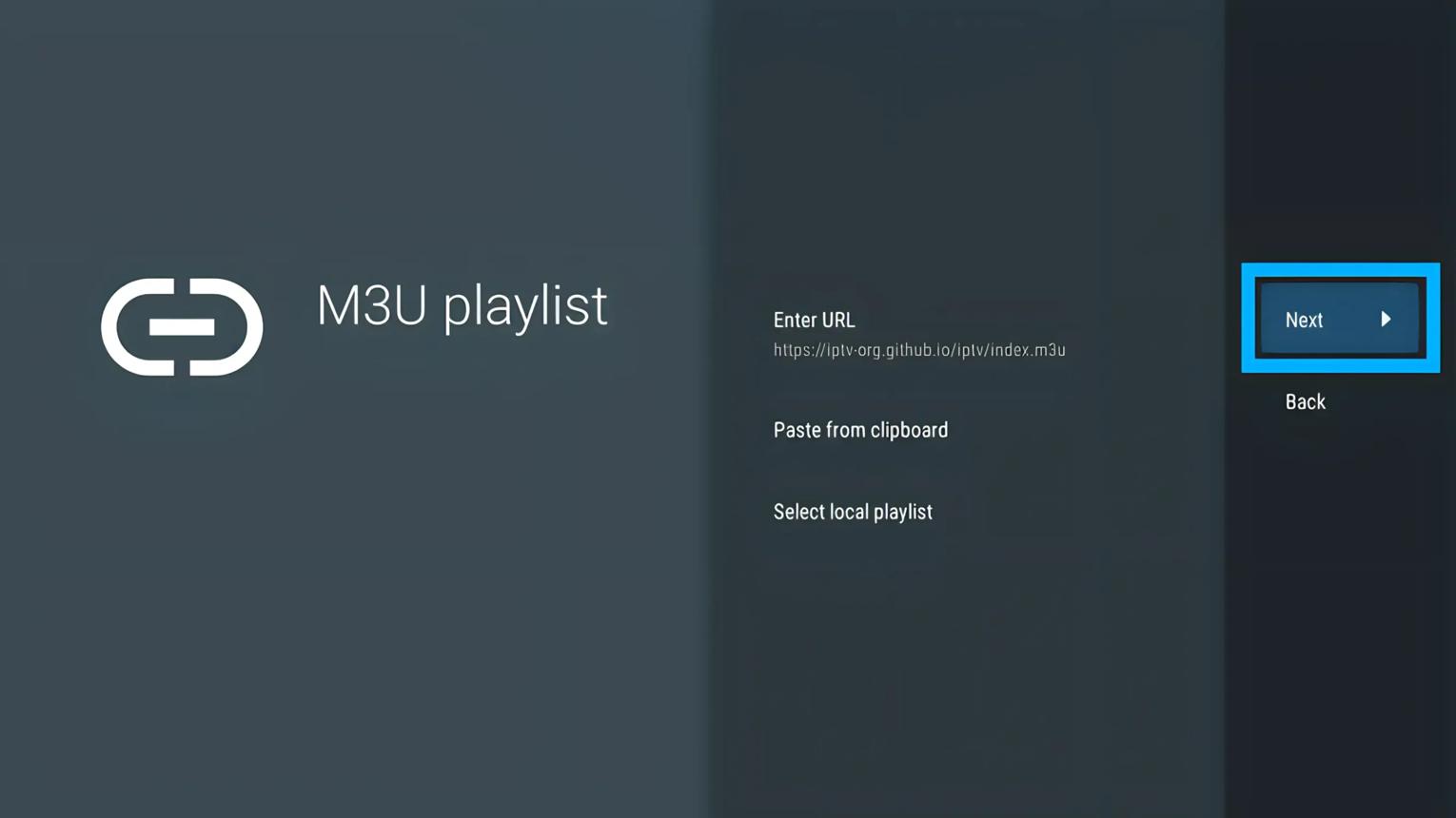
TiviMate will ask you to name your playlist.
Example:
. My IPTV
. Sports Package
. Premium TV
Click Done.
Step 5 – Import Channels
TiviMate will automatically:
. Download your playlist
. Import Live TV channels
. Download channel logos
. Organize categories
The process usually takes less than one minute.
Step 6 – Add an EPG Source (Optional)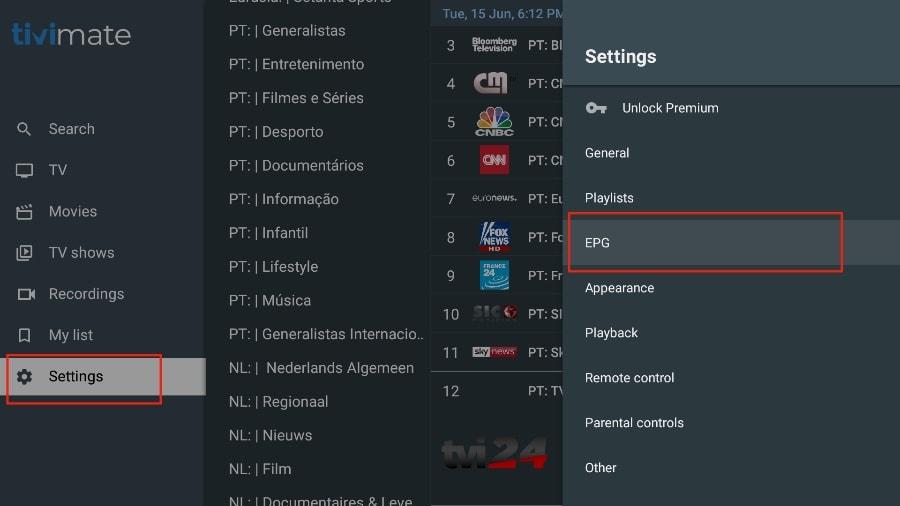
you can get EPG from Rapid IPTV or If your IPTV provider includes an EPG URL:
. Open Settings
. Select EPG
. Click Add Source
. Paste your EPG URL
. Save the settings
Your TV Guide will automatically synchronize.
Step 7 – Start Watching IPTV
You can now enjoy:
. Live TV
. Sports Channels
. News Channels
. International Channels
. Favorites
. Electronic Program Guide (EPG)
Troubleshooting
Playlist Won't Load
Check that:
. The M3U URL is correct.
. Your IPTV subscription is active.
. Your internet connection is working.
No Channels Found
Try:
. Refreshing the playlist.
. Re-importing the playlist.
. Restarting TiviMate.
EPG Not Working
Make sure:
. The EPG URL is correct.
. The playlist has finished importing.
. Your provider supports EPG.
Buffering Issues
Buffering may be caused by:
. Slow internet speed
. Server congestion
. Wi-Fi issues
. VPN configuration
For the best experience, use a wired connection whenever possible.
Why Choose TiviMate?
TiviMate offers:
. Modern interface
. Fast channel switching
. Multiple playlist support
. Favorites management
. Excellent EPG support
. Catch-up support
. Powerful search functionality
These features make it one of the best IPTV players available today.
Frequently Asked Questions
Does TiviMate support M3U playlists?
Yes. TiviMate fully supports IPTV M3U playlists.
Can I use multiple playlists?
Yes. TiviMate allows multiple IPTV playlists.
Is an EPG required?
No. IPTV works without an EPG, but a TV Guide provides a much better experience.
Why is my playlist not working?
Usually because of:
. Incorrect URL
. Expired subscription
. Internet problems
. IPTV server maintenance
Final Thoughts
Setting up IPTV with an M3U playlist in TiviMate is quick and easy. Simply import your playlist, optionally configure the EPG, and you'll be ready to enjoy your Rapid IPTV service within minutes.