
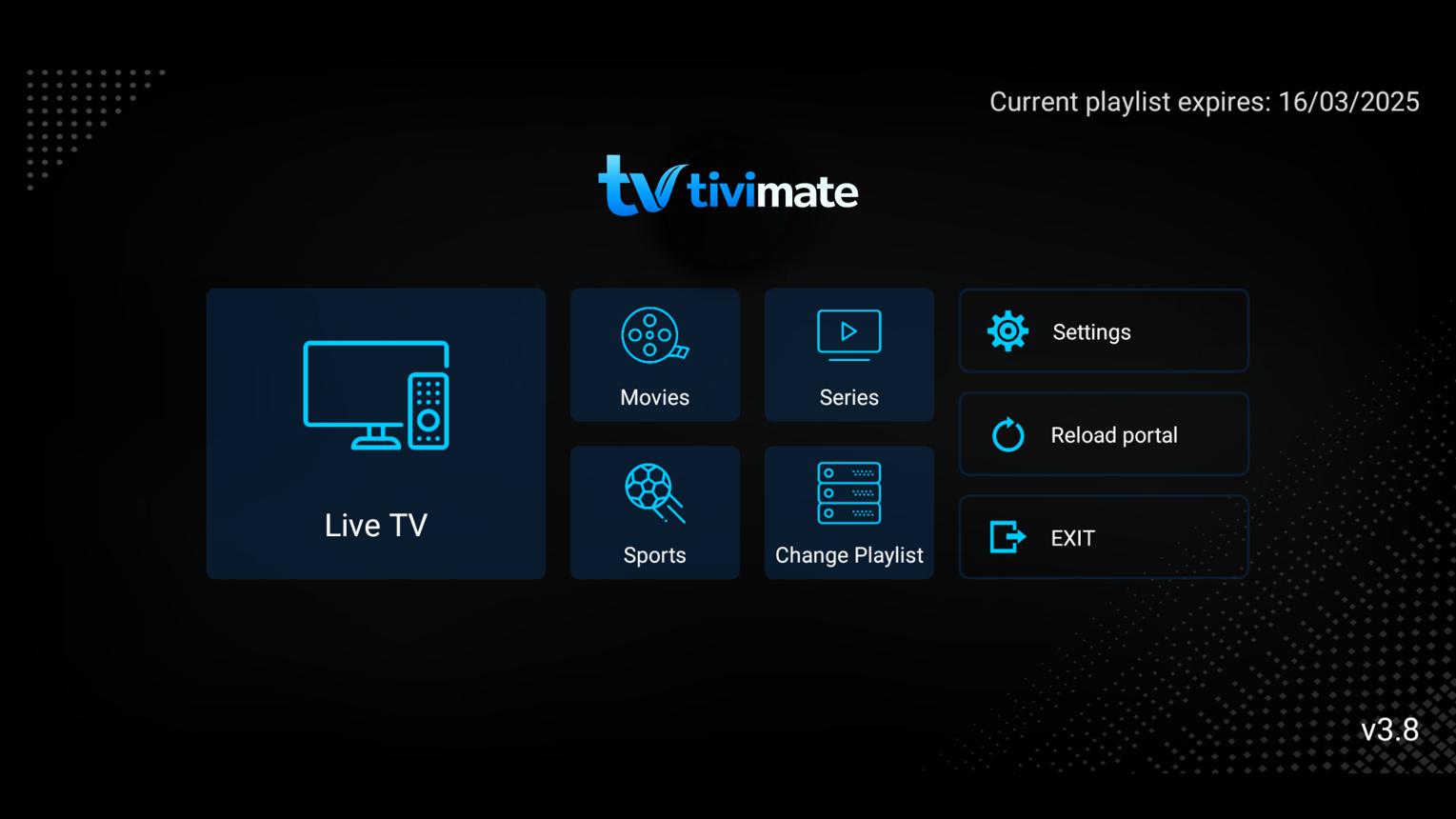
TiviMate is one of the most advanced IPTV players available for Android TV and Fire TV devices. It supports multiple IPTV login methods, including Xtream Codes API, making it easy to connect to your Rapid IPTV provider without manually managing M3U playlists.
This guide walks you through the complete setup process using Xtream Codes so you can start streaming live TV, movies, and series in just a few minutes.
What You'll Need
Before you begin, make sure you have:
. TiviMate installed on your Android TV or Fire TV device
. An active Rapid IPTV subscription
. Your Xtream Codes credentials:
. Server URL
. Username
. Password
. A stable internet connection
Step 1 – Open TiviMate
Launch the TiviMate app.
If this is your first time using the app, you'll be prompted to add a new playlist.
If you've already added a playlist:
1. Open Settings
2. Select Playlists
3. Choose Add Playlist
Step 2 – Select Xtream Codes
From the playlist options, choose:
Xtream Codes Login
Press Next to continue.
Step 3 – Enter Your Login Information
Enter the details provided by your Rapid IPTV provider.
Server URL
Example:
http://tv.rapidiptv.tvip.xyz
Username
Enter your Rapid IPTV account username.
Password
Enter your Rapid IPTV account password.
After entering the information, click Next.
Step 4 – Verify Your Account
TiviMate will connect to your IPTV server and automatically:
. Verify your account
. Import Live TV channels
. Download channel logos
. Load Movies and TV Series (if included)
. Synchronize the Electronic Program Guide (EPG)
The process usually takes less than one minute.
Step 5 – Enjoy Your IPTV Content
After synchronization is complete, you'll have access to:
. Live TV
. Movies
. TV Series
. Catch-up TV (if supported)
. Favorites
. EPG (TV Guide)
Everything will be organized automatically for easy navigation.
Troubleshooting
Login Failed
If you receive a login error:
. Verify the Server URL.
. Double-check your username and password.
. Confirm your IPTV subscription is active.
. Restart TiviMate and try again.
No Channels Available
If your playlist imports successfully but no channels appear:
. Refresh the playlist.
. Restart the app.
. Re-enter your Xtream Codes credentials.
EPG Not Loading
If TV schedules are missing:
. Refresh the EPG.
. Wait a few minutes after the first synchronization.
. Confirm that your Rapid IPTV provider supports EPG.
Playback Buffering
Buffering may be caused by:
. Slow internet speed
. IPTV server congestion
. Weak Wi-Fi signal
. VPN or DNS configuration
For the best streaming experience, use a wired Ethernet connection whenever possible.
Why Use Xtream Codes?
Compared to M3U playlists, Xtream Codes offers several advantages:
. Faster setup
. Automatic channel updates
. Built-in EPG synchronization
. Better organization of channels, movies, and series
. Easier account management
For most users, Xtream Codes provides a more convenient IPTV experience.
Frequently Asked Questions
Does TiviMate support Xtream Codes?
Yes. TiviMate fully supports Xtream Codes API.
Can I add multiple IPTV accounts?
Yes. You can add and manage multiple IPTV accounts in TiviMate.
Is Xtream Codes better than M3U?
Both methods work well, but Xtream Codes is generally easier to maintain because updates are handled automatically.
Why can't I log in?
Login issues are usually caused by:
. Incorrect Server URL
. Invalid username or password
. Expired IPTV subscription
. Temporary server maintenance
Final Thoughts
Using Xtream Codes in TiviMate is one of the easiest ways to configure your Rapid IPTV service. Simply enter your account credentials, allow the app to synchronize your content, and you'll be ready to enjoy live TV, movies, and series with a modern and user-friendly interface.